Online booking
Let clients book you online.
Your own booking page, built from your services and working hours. Clients pick a free time, and it lands in your appointments, ready to invoice.
How it works
- 01
Share your link
On WhatsApp, Instagram, your website, or as a printed QR code on the counter or the van.
- 02
Clients pick a time
Only inside your working hours, never on top of another appointment.
- 03
It lands in your appointments
Accept it, or let it book straight away. You both get an email.
Your page
Your services, your hours.
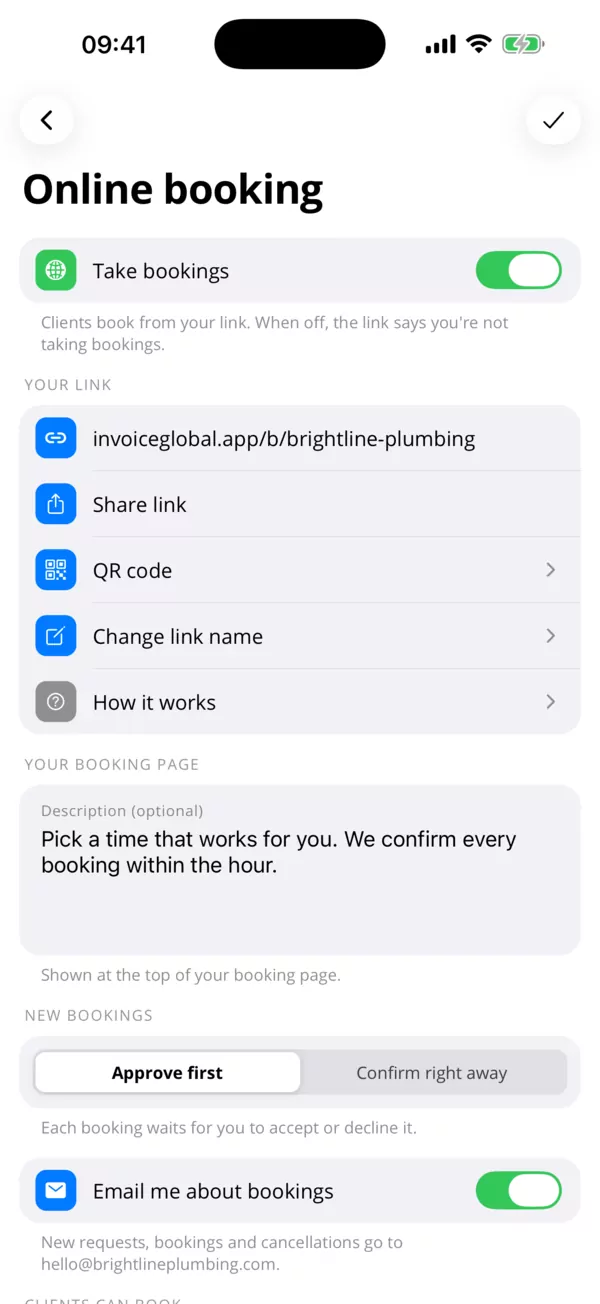
Choose what clients can book, whether prices show and which contact details appear. Set the minimum notice and how far ahead people can book.
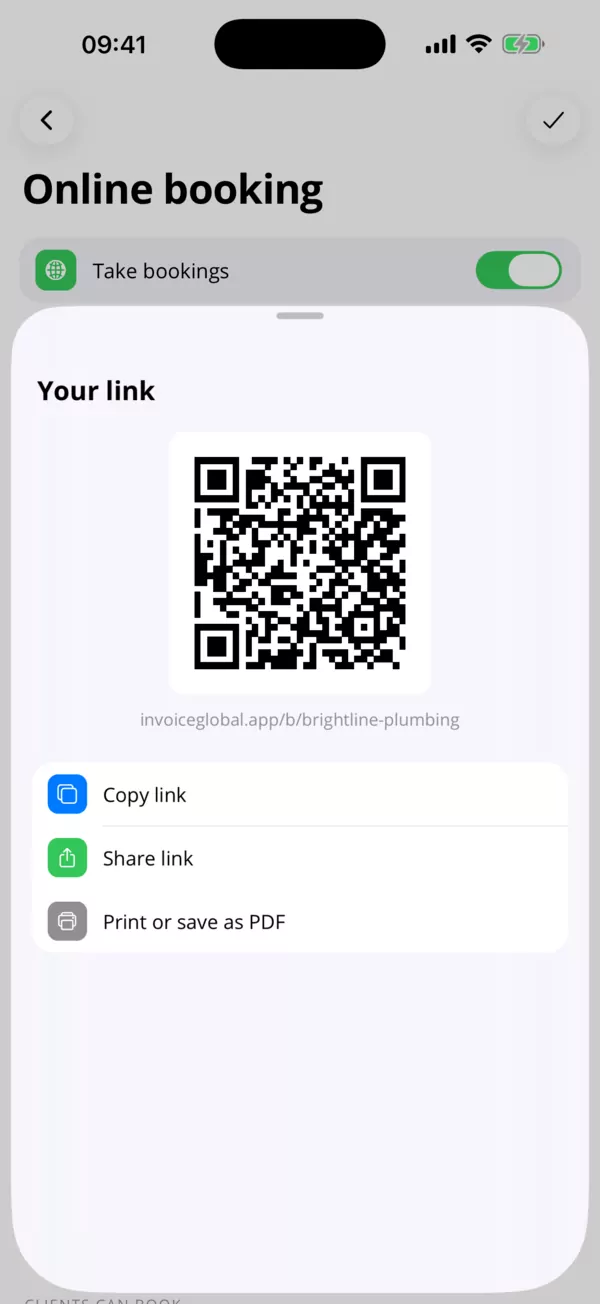
- invoiceglobal.app/b/your-name
- A QR code sign to print
- Approve first or confirm right away
Your day
Appointments that turn into invoices.
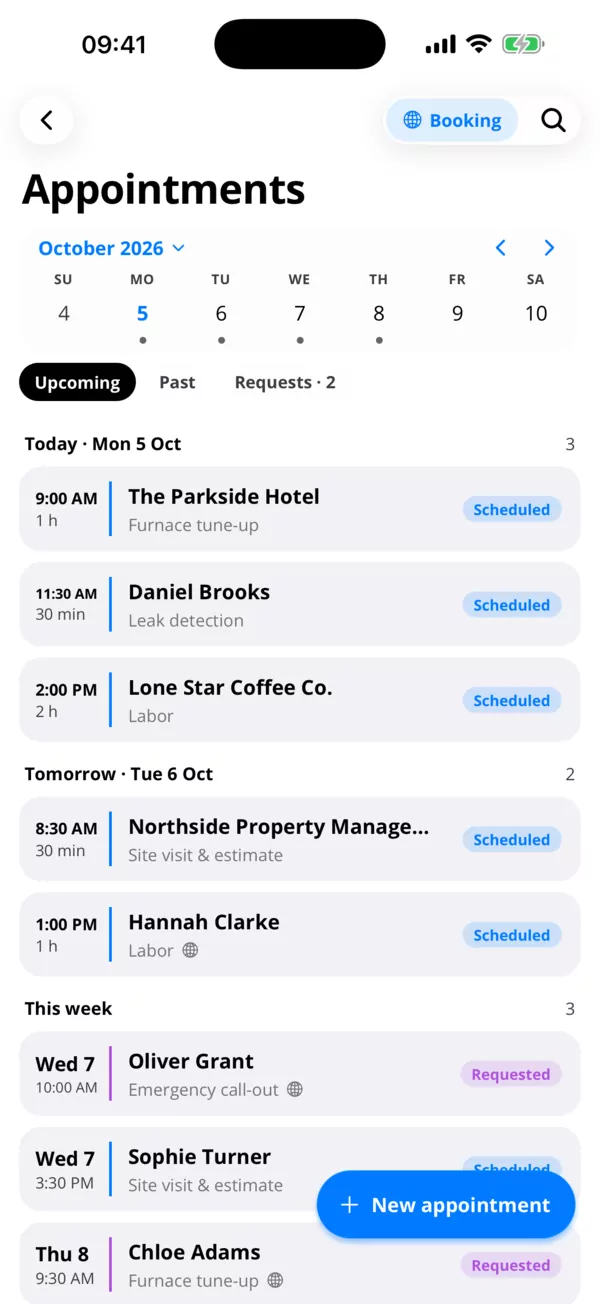
Requests sit with your other appointments. Get a reminder before each one, keep your phone's calendar in sync, and when the job is done, make the invoice with the booked services already on it.
- Accept or decline with one tap
- Reminders and calendar sync
- Appointment to invoice in one tap
Questions
- Does it cost extra?
- No, online booking is part of the app. The free plan holds 3 appointments; Pro removes the limit.
- Do clients need an account?
- No. They open your link in a browser, pick a time and leave their details.
- Can two clients book the same time?
- No. Clients only see free times inside your working hours.
- What happens when a client cancels?
- You get an email and the appointment shows as cancelled by the client.
- Does it work with my calendar?
- Appointments can go into your phone's calendar and update when you change them. Clients get a calendar file in their confirmation email.
- Can I turn it off?
- Yes. Switch off Take bookings and the link tells visitors you're not taking bookings.
Turn on online booking.
Free to download. Turn it on under Appointments in the app.